



Understanding Common Laser Cutting Mistakes to Avoid for Better Projects
Laser cutting can turn a simple digital design into a beautiful wooden sign, acrylic ornament, or custom home decor piece. But when you’re getting started, even small mistakes can leave you with burnt edges, incomplete cuts, wasted materials, or parts that don’t fit together.
The frustrating part? A project might look perfect on your computer and still turn out completely different on the laser bed.
Fortunately, most common laser cutting mistakes are preventable. Learning to recognize problems with laser power, cutting speed, focus, material selection, and design files can make your projects more consistent without endless trial and error.

Whether you use a diode laser, CO2 laser, or another type of laser cutting machine, these ten mistakes are worth understanding before your next project.
Why Small Laser Cutting Mistakes Matter
Laser cutting depends on several factors working together. Your machine needs the right material, a properly focused beam, suitable cutting settings, and an accurate design file.
If just one of these is wrong, the results can change dramatically.
For example, using too much power may char the edges of plywood, while moving the laser too quickly may leave sections uncut. A poorly designed SVG file might create duplicate cutting paths or gaps that aren’t visible at first glance.
Beyond wasted materials, some mistakes create serious safety risks. Laser cutting can release harmful airborne contaminants and ignite combustible materials. Proper ventilation, approved materials, and continuous supervision are essential.
The goal isn’t to find one magical setting that works for everything. It’s to build a reliable process you can repeat.
1. Using the Wrong Laser Power and Speed Settings
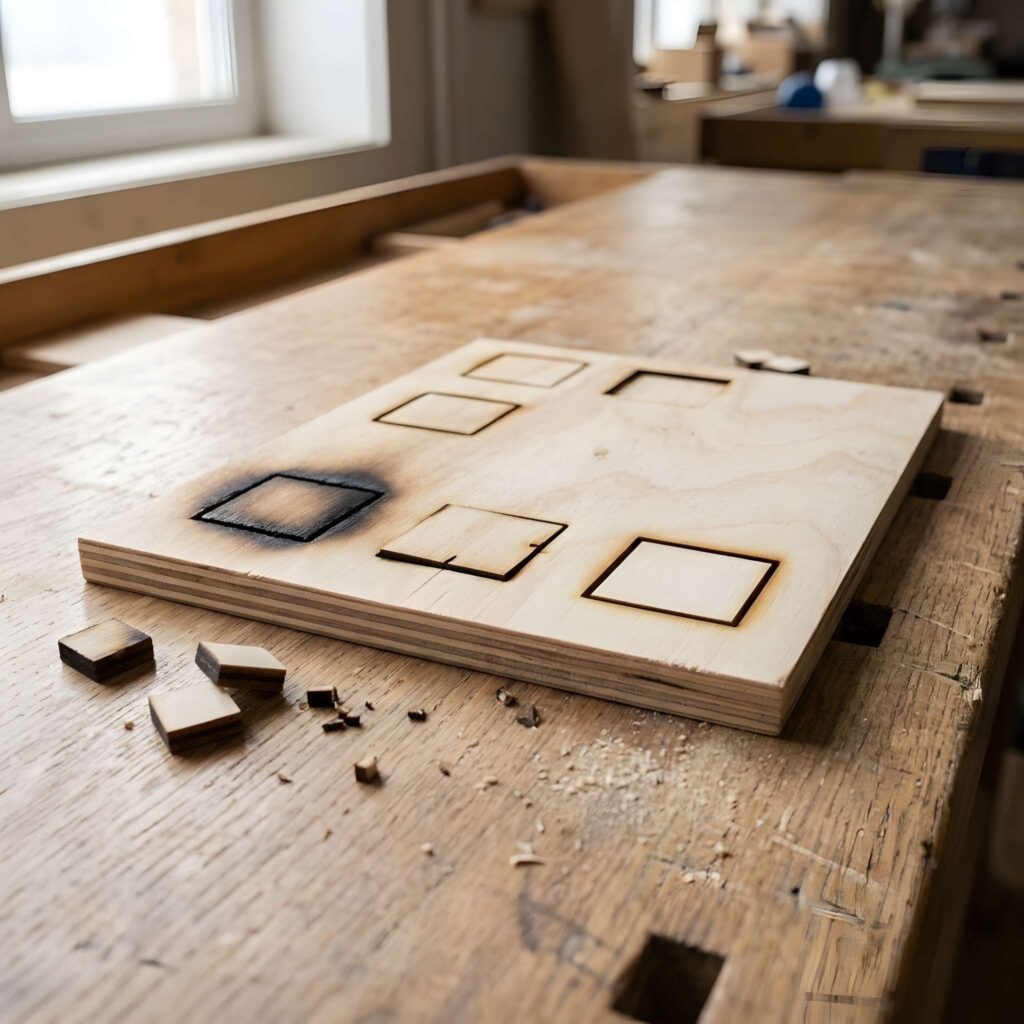
One of the most common laser cutting mistakes beginners make is copying power and speed settings without checking whether they suit their machine and material.
It seems convenient to use settings from a tutorial, especially when someone else is cutting similar plywood or acrylic. However, two sheets with the same advertised thickness may respond differently.
Machine wattage, beam quality, lens condition, material density, and actual thickness all influence the result.
What happens when your settings are wrong?
Too much laser energy may cause excessive charring, a wider kerf, melted edges, or unnecessary heat buildup.
Too little laser energy may produce incomplete cuts, attached pieces, or the need for additional passes.
How to avoid this mistake
Start with your machine manufacturer’s recommended settings for an approved material, then run a small test.
Adjust one variable at a time and record your results.
For example, when testing 3 mm plywood, cut a few small squares at different speeds while keeping the other settings unchanged. Examine which combination creates a complete cut with acceptable edge quality.
Don’t assume the best setting for one plywood brand will work for every sheet.
Pro tip: Create a settings library that records the material, thickness, power, speed, number of passes, focus position, and air-assist configuration.
2. Forgetting to Focus the Laser Correctly
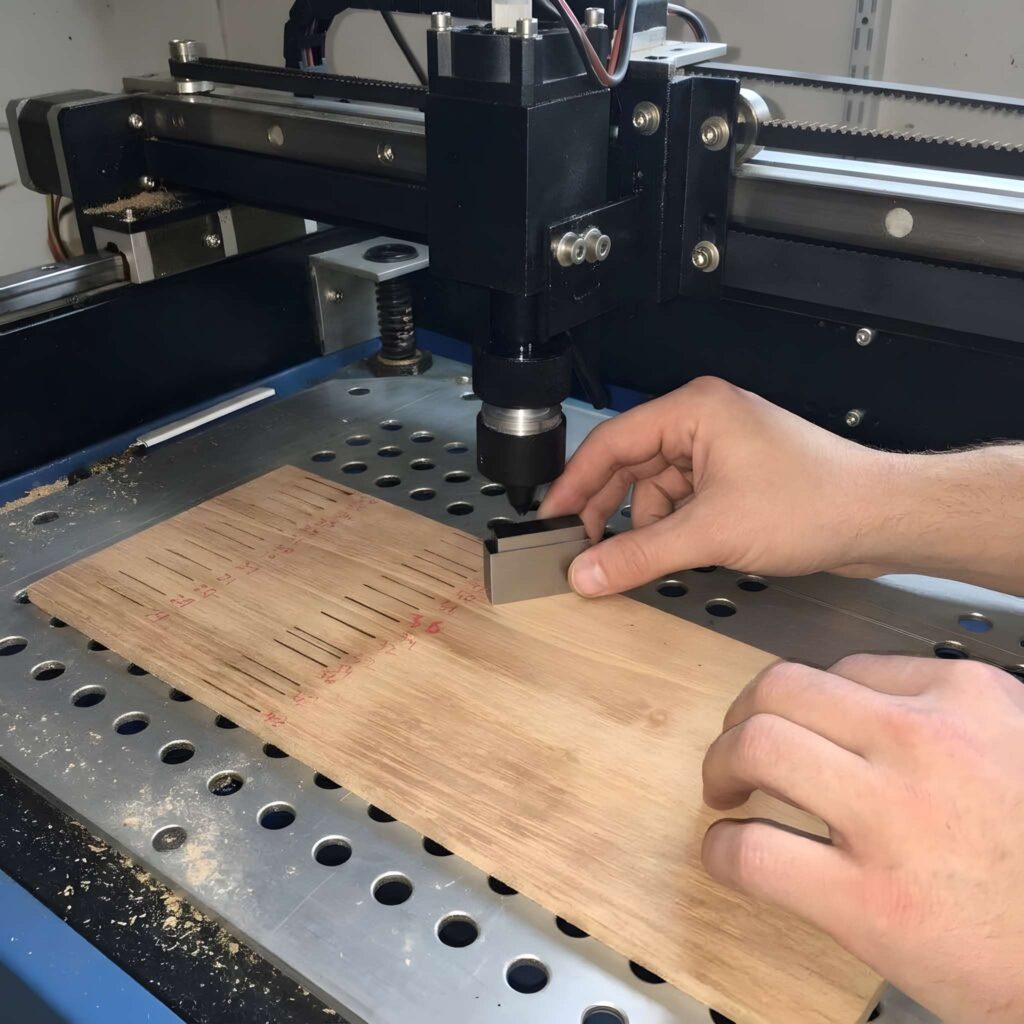
Laser focus plays a major role in cutting precision.
When the beam is properly focused, the machine can concentrate energy into a small area. If the focus is too high or too low, the beam spot at the workpiece may become larger.
This can produce wider cuts, uneven edges, and incomplete penetration.
Common signs of incorrect focus
- Cuts are wider than expected.
- One section cuts cleanly while another remains attached.
- Engraved details look blurry.
- Previously reliable settings stop producing good results.
How to avoid this mistake
Check your machine’s focus before starting each project, especially when changing material thickness.
For manual-focus systems, follow the manufacturer’s prescribed procedure using the proper focus gauge or spacer. Automatic-focus systems also need correct material-height information and calibration.
Make sure the workpiece is level and securely positioned.
Warped plywood is a frequent source of inconsistent results because its surface height changes across the cutting area.
Avoid compensating for poor focus by immediately increasing power. Fix the focusing issue first.
3. Cutting Materials That Aren’t Laser Safe
MATERIAL SAFETY

Not every material that fits inside a laser cutter should be cut with one.
This is a particularly important beginner mistake because different plastics, coatings, adhesives, and composite materials can produce hazardous fumes when heated by a laser.
PVC and vinyl, for example, must not be laser cut because they can release corrosive hydrogen chloride and other harmful byproducts. Materials such as ABS, polycarbonate, and various foams may also create significant smoke, toxic emissions, melting, or fire hazards.
How to choose suitable materials
Check both the material composition and your machine manufacturer’s approved-material list.
Some commonly processed materials include appropriately specified laser-grade plywood, solid wood, acrylic (PMMA), and paper products. Their suitability still depends on the machine, thickness, ventilation, and approved operating procedures.
| Material | General guidance |
|---|---|
| Laser-grade plywood | Commonly used for signs and decorations; verify adhesives and thickness |
| Acrylic (PMMA) | Common CO2 laser material; wavelength compatibility matters |
| MDF | May be permitted with appropriate extraction; produces significant fumes |
| PVC / Vinyl | Do not laser cut |
| Unknown plastics | Do not process until composition and safety are verified |
| Foam materials | Often prohibited or highly fire-prone; verify specific material and workshop rules |
When purchasing supplies online, look for clear composition information rather than relying on a vague label such as “laser friendly.”
If you cannot identify the material, do not cut it. A small savings on unidentified material is not worth damaging your equipment or exposing yourself to dangerous emissions.
4. Skipping a Test Cut Before Starting a Project
Imagine spending time preparing a detailed wooden wall sign, only to discover that your laser cannot cut through the final sheet.
Without testing, the problem might not become obvious until the entire job is finished.
A small test cut helps confirm whether your settings, material, and design behave as expected.
A simple test-cut routine
- Choose a small area of approved material, preferably a representative scrap from the same batch.
- Draw a small square or circle.
- Use a recommended starting setting.
- Run the test while monitoring the machine.
- Check whether the shape separates cleanly and inspect its edges.
- Adjust settings as needed and repeat.
A 10–20 mm test shape is often enough to reveal incomplete cutting or excessive scorching, although complex projects may require more detailed tests.
Pay attention to small internal details too. If your finished project includes tiny lettering or narrow slots, a basic square alone may not identify every potential problem.
Pro tip: Test the smallest important detail in your design, not just the overall material thickness.
5. Ignoring Kerf and Material Thickness

A laser beam removes a narrow amount of material as it cuts. This removed width is called the kerf.
Kerf becomes particularly important when making boxes, puzzles, wooden organizers, press-fit assemblies, and interlocking SVG projects.
A design may look mathematically perfect on your screen, but real-world parts can still fit loosely or become too tight.
Why kerf matters
Suppose you’re making a plywood box with tabs and slots. The nominal material thickness is 3 mm, but the actual sheet might measure slightly more or less.
Meanwhile, every laser cut removes a small amount of material.
Both factors influence how the parts fit together.
How to avoid this mistake
Measure the actual material with calipers instead of trusting its advertised thickness.
Then cut a small test joint and check the fit.
If necessary, adjust the slot dimensions or use the kerf compensation feature available in your design or laser software.
Don’t apply a universal kerf value to every machine and material. The effective cutting width can change with focus, settings, and the material itself.
For decorative projects, slight differences might be barely noticeable. For functional organizers and fitted boxes, they can determine whether the entire assembly works.
6. Using Poorly Prepared SVG or Vector Files

Even a well-adjusted laser cutter cannot correct every problem in a poorly prepared design file.
SVG, DXF, and other vector formats often contain issues that are easy to overlook, especially when files come from different marketplaces or design programs.
Common problems include duplicate paths, overlapping shapes, open outlines, unexpected scale changes, and elements assigned to the wrong operation.
Watch for duplicate cut lines
A duplicate path can cause the machine to follow the same cut twice.
This may increase heat exposure, waste time, and create unnecessary charring.
How to avoid this mistake
Before sending a file to the machine:
- Inspect the design in your vector editor.
- Remove unwanted duplicate and overlapping paths.
- Convert text to paths when required for software compatibility.
- Verify the dimensions and units.
- Assign cutting and engraving operations correctly.
- Preview the toolpath in your laser software.
Pay special attention when importing files from Illustrator, Inkscape, LightBurn, or other design tools, because import settings and operation assignments can affect the result.
For assembly projects, confirm that every tab, slot, and panel is present before cutting the full sheet.
A few minutes of file preparation can prevent an entire batch of unusable pieces.
7. Neglecting Air Assist and Ventilation
Air assist and exhaust ventilation serve different purposes, and neither should be ignored.
Air assist directs airflow near the cutting point. On compatible machines, it can help clear smoke and debris, reduce deposits, and improve edge quality.
Exhaust ventilation removes laser-generated contaminants from the machine and directs them through an appropriate extraction or filtration system.
Both are important, but air assist is not a substitute for ventilation.
What can go wrong?
Without effective air assist, some materials may develop heavier residue or inconsistent cutting conditions.
Without suitable ventilation, smoke and hazardous fumes can accumulate.
Poor airflow can also increase contamination inside the machine.
How to avoid this mistake
Before starting, check the air-assist system where fitted, confirm that the exhaust is functioning, and inspect filters according to the manufacturer’s maintenance schedule.
Follow the approved setup for your specific machine. Do not assume that opening a window or using an ordinary room fan provides adequate fume control.
MIT recommends air assist for laser cutters and emphasizes proper exhaust, cleaning, and fire precautions.
8. Failing to Secure the Material Properly
Laser cutting requires the material to remain stable throughout the job.
If the sheet shifts, bends, or lifts during cutting, the finished design may become misaligned.
This is especially noticeable with thin plywood, cardboard, and lightweight materials.
Common problems
A slightly warped sheet may move in and out of the ideal focal plane. A loose offcut might also tip upward and interfere with the laser head.
That can turn an otherwise accurate job into an incomplete or damaged project.
How to avoid this mistake
Use machine-approved hold-down methods, honeycomb-bed pins, or suitable fixtures where recommended.
Confirm that clamps and weights cannot interfere with the moving laser head or beam.
Before cutting, use your software’s frame or boundary-preview feature to check whether the design fits the available material.
Keep small pieces from shifting into the cutting path and verify that the material is lying flat.
For larger designs, don’t rely solely on visual alignment. Check the job origin and cutting boundaries before pressing Start.
9. Ignoring Regular Laser Cutter Maintenance
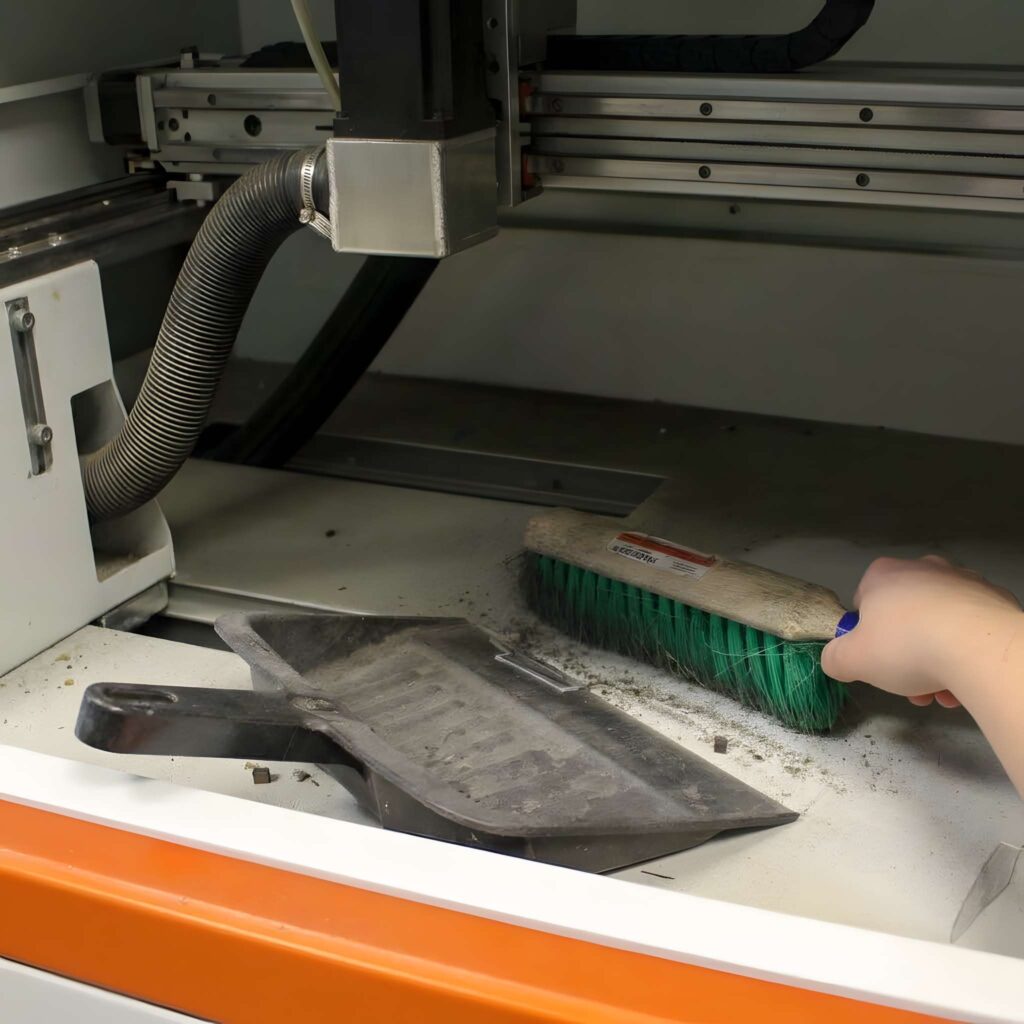
A laser cutter can gradually lose performance as residue accumulates on optical components, the cutting bed, fans, and other parts.
Over time, this buildup can affect power delivery, smoke extraction, and reliability.
Beginners sometimes respond to declining cut quality by increasing power, even though the actual problem is a dirty lens or obstructed extraction system.
What should you inspect?
Follow your manufacturer’s instructions for cleaning optical components and checking the machine.
Typical maintenance areas include the cutting bed, exhaust system, filters, cooling system, rails, and approved optical surfaces.
Never attempt to clean an optical component while the machine is operating, and never bypass protective interlocks.
CO2 laser systems may require additional attention to mirrors, cooling, and optical alignment, depending on the model.
A simple maintenance habit
Inspect the cutting area before every job and follow a regular cleaning schedule based on how frequently you use the machine.
Remove scraps and debris after cutting, once it is safe to do so.
Regular cleaning also reduces combustible debris that could contribute to a fire.
10. Leaving the Laser Cutter Running Unattended
This is one of the most dangerous laser cutting mistakes.
Even when your settings are correct, the material is approved, and the machine has operated reliably many times, a fire can still occur.
Wood, paper, cardboard, and other combustible materials can ignite during laser processing.
A small flare-up may escalate if it isn’t identified and addressed promptly.
How to avoid this mistake
Never leave an operating laser cutter unattended.
Stay in the designated monitoring position and follow your manufacturer’s fire-safety procedures.
Keep an appropriate, maintained fire extinguisher readily accessible, understand the machine’s emergency-stop procedure, and keep combustible clutter away from the cutting area.
If a fire occurs, follow your workshop’s emergency plan. Shut the machine down if it is safe to do so, and evacuate and call emergency services when necessary. Do not open an enclosure or attempt to fight a fire if doing so would expose you to danger.
Protective covers and interlocks must remain in place during normal operation. Never bypass them.
Laser cutter safety guidance from MIT specifically warns against unattended operation and recommends fire extinguishers, cleaning, training, and proper machine safeguards.
Quick Laser Cutting Troubleshooting Guide
When a project goes wrong, start by identifying the symptom rather than changing several settings at once.
| Problem | Possible cause | First thing to check |
|---|---|---|
| Laser doesn’t cut through | Insufficient energy, poor focus, unsuitable material | Focus and approved settings |
| Excessively burnt edges | Too much heat, slow travel, poor airflow | Power, speed, and air assist |
| Uneven cutting | Warped sheet or inconsistent focus | Material flatness |
| Parts fit too loosely | Incorrect kerf or slot dimensions | Test joints |
| Blurry engraving | Focus or resolution issue | Focus and engraving settings |
| Unexpected double cuts | Duplicate vector paths | SVG file |
| Heavy smoke buildup | Exhaust or filter issue | Stop and inspect ventilation |
| Misaligned design | Material movement or wrong origin | Hold-downs and job positioning |
These checks are a starting point, not a reason to continue operating an unsafe machine. If you notice unusual smoke, persistent flames, damaged optics, or failed ventilation, stop the job and resolve the issue before restarting.
A Simple Checklist Before Every Laser Cut
Pre-cut safety and quality checklist
0 of 8Confirm the material is identified and approved for the machine.Check that the cutting bed is clean and free of loose debris.Verify ventilation and air assist are working correctly.Confirm material thickness, focus, and a flat workpiece.Inspect SVG paths, dimensions, and operation assignments.Review power, speed, passes, and the software preview.Run a small representative test cut when appropriate.Stay present and ready to respond throughout the job.
Reset checklist
Following a consistent process is often more effective than trying to remember every small detail.
As you gain experience, create a checklist tailored to your own machine, materials, and workshop.
Final Thoughts: Avoid Common Laser Cutting Mistakes
Learning to avoid common laser cutting mistakes is one of the best ways to improve your results as a beginner.
The biggest improvements often come from simple habits: choosing approved materials, checking the laser focus, testing settings, preparing clean SVG files, and measuring parts before assembling them.
Equally important is building safe workshop habits. Effective ventilation, routine maintenance, and continuous supervision should be part of every project, not optional extras.
You don’t need to master every machine setting immediately. Start with straightforward designs, document what works, and make controlled improvements from one project to the next.
With practice and a consistent workflow, you’ll spend less time troubleshooting and more time creating laser-cut projects worth keeping.
Frequently Asked Questions About Laser Cutting Mistakes
1. What is the most common mistake beginners make with laser cutting?
Using incorrect speed and power settings without testing them on the actual material is a common beginner mistake. It can cause excessive burning, incomplete cuts, or unnecessary material waste. Always begin with approved machine settings and verify them with a small test cut.
2. Why is my laser cutter burning the edges of wood?
Burnt edges can result from excessive laser energy, slow cutting speed, poor focus, inadequate air assist, or the characteristics of the wood itself. Start by checking your focus and airflow before making controlled adjustments to the settings. Some darkening is normal when laser cutting wood, so completely eliminating every dark edge may not be realistic.
3. Why is my laser not cutting all the way through?
Possible causes include insufficient power, excessive cutting speed, incorrect focus, dirty optics, or material that is too thick for the machine. Check the manufacturer’s material specifications and verify that your ventilation and machine components are functioning correctly. Avoid repeatedly increasing power without identifying the underlying problem.
4. How can I prevent burn marks when laser cutting plywood?
Use appropriately specified plywood, maintain proper focus, optimize settings through test cuts, and use air assist when recommended. Suitable masking materials may help protect the surface, but only use masking products explicitly approved for laser processing.
5. Do I need kerf compensation for laser cutting?
Not every project requires it. Simple ornaments and decorative signs may tolerate small dimensional differences. However, boxes, puzzles, organizers, and press-fit assemblies often benefit from kerf testing and dimensional adjustments.
6. Can I cut any plastic with a laser cutter?
No. Certain plastics can release hazardous or corrosive fumes, melt excessively, or catch fire. PVC and vinyl are particularly dangerous. Only process materials whose chemical composition and compatibility with your machine have been verified.
7. How many passes should I use when laser cutting?
There is no universal number. It depends on the material, thickness, machine, optics, and operating parameters. Start with approved manufacturer guidance and use controlled tests. Multiple passes are not automatically safer or better than a single pass, because they can increase heat exposure and fire risk.
8. Why do my laser-cut pieces not fit together?
The most likely design-related causes include incorrect material thickness, kerf allowance, or tab and slot dimensions.Measure the material with calipers and cut a small test joint before processing the entire assembly.
9. Can laser cutting mistakes damage the machine?
Yes. Processing prohibited materials, ignoring ventilation problems, allowing fires to develop, and neglecting maintenance can damage the machine.
For example, corrosive gases from PVC processing can damage optical and mechanical components.