Understanding Laser Cutting Terms for Beginners
Getting started with laser cutting is exciting, but the terminology can feel like learning an entirely new language. One minute you’re downloading an SVG design for a wooden sign, and the next you’re trying to figure out what kerf, focal distance, air assist, or passes actually mean.
The good news? You don’t need an engineering degree to understand your laser cutter.
This beginner-friendly guide explains 35 essential laser cutting terms in everyday language, with practical examples to help you understand your machine, prepare designs, and avoid common mistakes.

Whether you’re making plywood ornaments, acrylic decorations, personalized gifts, or DIY home organization projects, these definitions will help you work with greater confidence.
Why Laser Cutting Terminology Matters
Laser cutting uses a concentrated beam of light to cut, engrave, or mark materials. Software controls where the beam moves, while machine settings determine how much energy reaches the material.
Understanding the terminology helps you:
- Choose settings more confidently for different materials.
- Identify why a design isn’t cutting all the way through.
- Prepare SVG and DXF files correctly.
- Reduce wasted material and unnecessary test runs.
- Communicate clearly when troubleshooting.
For example, knowing what kerf means can help you make better-fitting wooden boxes. Understanding the difference between cutting and engraving helps you choose the right operation before starting a job.
Here are the terms worth learning first.
Basic Laser Cutting Terms
1. Laser Cutting
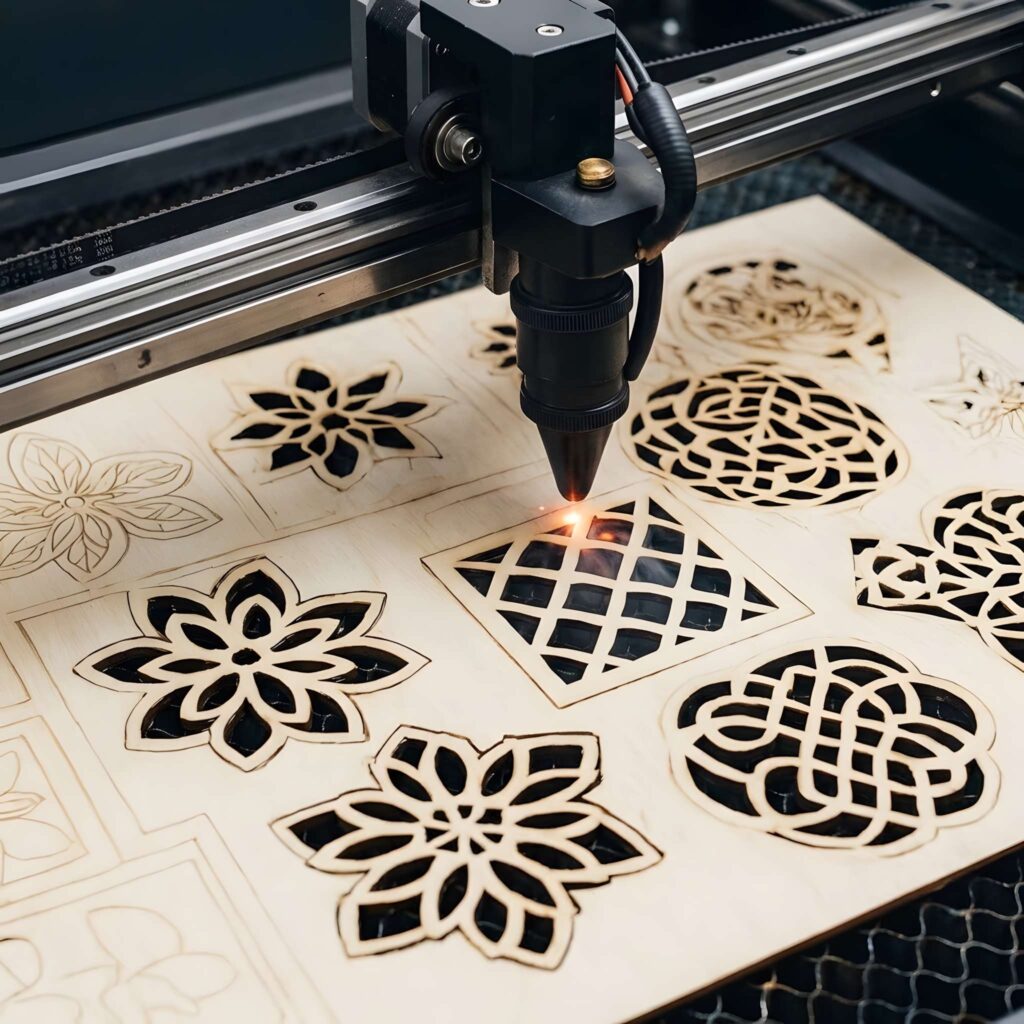
Laser cutting is the process of using a focused laser beam to separate material along a programmed path.
The beam heats the material enough to remove it from the cut path. Depending on the material and machine, this can involve melting, vaporization, or combustion.
Example: Cutting individual shapes from a sheet of 3 mm plywood to assemble a decorative wooden lantern.
2. Laser Engraving
Laser engraving removes or modifies material at the surface to create visible designs, patterns, lettering, or images.
Unlike cutting, engraving typically doesn’t go all the way through the material.
Example: Adding a person’s name to a wooden cutting board without cutting the board into pieces.
Engraving can vary in depth and appearance depending on the material and settings.
3. Laser Etching
Laser etching is a surface-marking process that creates relatively shallow changes in a material.
The term is sometimes used interchangeably with engraving, although their technical meanings can differ depending on the equipment and industry.
Example: Marking a logo onto a suitable coated metal surface.
4. Laser Marking
Laser marking is a broad term for creating permanent or lasting marks using a laser. Depending on the process, it may involve surface removal, color change, annealing, or other material reactions.
Not all marking removes a noticeable amount of material.
5. Kerf
Kerf is the width of material removed during cutting.
It’s one of the most important laser cutting terms for projects that require accurate measurements.
Imagine cutting two wooden pieces designed to fit together. Because the laser removes a narrow strip of material, the finished dimensions may differ slightly from the original drawing.
For example, a measured kerf of 0.2 mm means a straight cut removes approximately 0.2 mm of material across its width.
The actual kerf depends on your machine, focus, settings, and material.
6. Kerf Compensation
Kerf compensation adjusts a cutting path to account for the width of material removed by the laser.
It’s especially useful for:
- Interlocking wooden boxes
- Finger-joint connections
- Press-fit assemblies
- Small decorative components
A properly calibrated kerf offset can improve fit without repeated manual resizing.
7. Vector Cutting
Vector cutting follows mathematical paths made of lines and curves rather than cutting individual image pixels.
These paths define the shapes your laser should follow.
Example: Cutting a detailed Christmas ornament from an SVG file.
8. Raster Engraving
Raster engraving builds an image by scanning across a surface in closely spaced lines.
It is commonly used for photographs, shaded graphics, and filled text.
A raster operation may use pixel data to control the engraving, although vector shapes can also define areas that are filled with scan lines.
9. Cutting Bed
The cutting bed is the surface inside a laser machine that supports your material during processing.
Common styles include honeycomb beds, knife beds, and pin-supported arrangements.
The ideal bed depends on the material and the type of work.
Laser Power and Machine Settings
Learning these settings is often the difference between a clean result and a frustrating pile of unsuccessful tests.
10. Laser Power
Laser power describes the output of the laser, commonly measured in watts (W).
In many software interfaces, the power setting is expressed as a percentage of the machine’s available output.
Increasing power can deliver more energy to the material, but it can also cause excessive burning, melting, or unwanted marks.
A 20 W diode laser and a 20 W CO2 laser shouldn’t automatically be expected to perform identically because wavelength, beam characteristics, and material absorption also matter.
11. Cutting Speed
Cutting speed is how quickly the laser beam moves along a cutting path.
Typical software units include millimeters per second (mm/s) or millimeters per minute (mm/min).
Slower movement generally increases the energy delivered per unit length at a given power. Faster movement generally reduces it.
Example: If plywood isn’t cutting completely through, you might test a slower speed—but the correct adjustment depends on focus, power, material, and machine limitations.
12. Passes
A pass is one complete traversal of a designated cut or engraving operation.
Some projects require several passes to achieve the intended depth.
Multiple passes can be useful with thicker materials or lower-powered equipment, but they may also increase heat buildup and the chance of charring.
13. Focal Point
The focal point is the location where the laser beam is concentrated into a small spot.
Correct focus is essential for clean cutting and fine engraving details.
A poorly focused beam may produce wider lines, inconsistent engraving, or incomplete cuts.
14. Focal Distance
Focal distance refers to the working distance associated with positioning the focused laser beam, although exact terminology varies by machine.
The focal length of the lens and the required nozzle-to-material or module-to-material distance aren’t necessarily the same measurement.
Always use the focusing instructions for your specific equipment.
15. DPI and Line Interval
DPI stands for dots per inch. In raster engraving, it is often used to describe engraving resolution or scan-line density.
Line interval measures the spacing between consecutive engraving lines.
Smaller spacing can produce denser engraving, but too much overlap may increase heat and processing time.
The ideal line interval depends on the spot size, material, and desired finish.
16. Air Assist
Air assist directs a stream of air toward the laser’s working area.
For many woodworking and acrylic applications, it helps clear smoke and debris, reduces residue around the cut, and can improve cut quality.
It may also help reduce localized flaming, but it doesn’t replace fire monitoring or an effective extraction system.
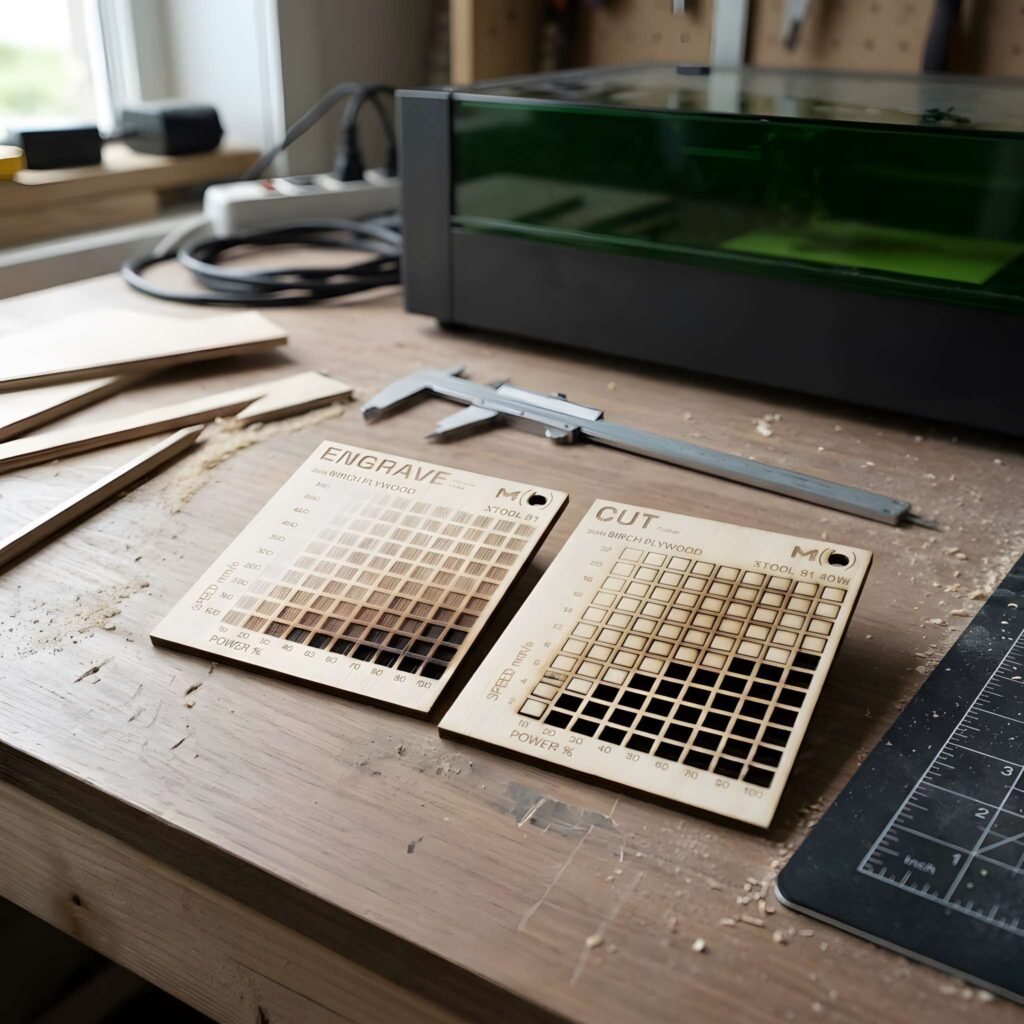
17. Test Grid
A test grid is a series of small sample cuts or engravings made using different settings.
For example, you might engrave a plywood panel at several power and speed combinations to compare the results.
Rather than guessing, the grid gives you a physical reference for your particular material.
Laser Cutting Design and File Terms
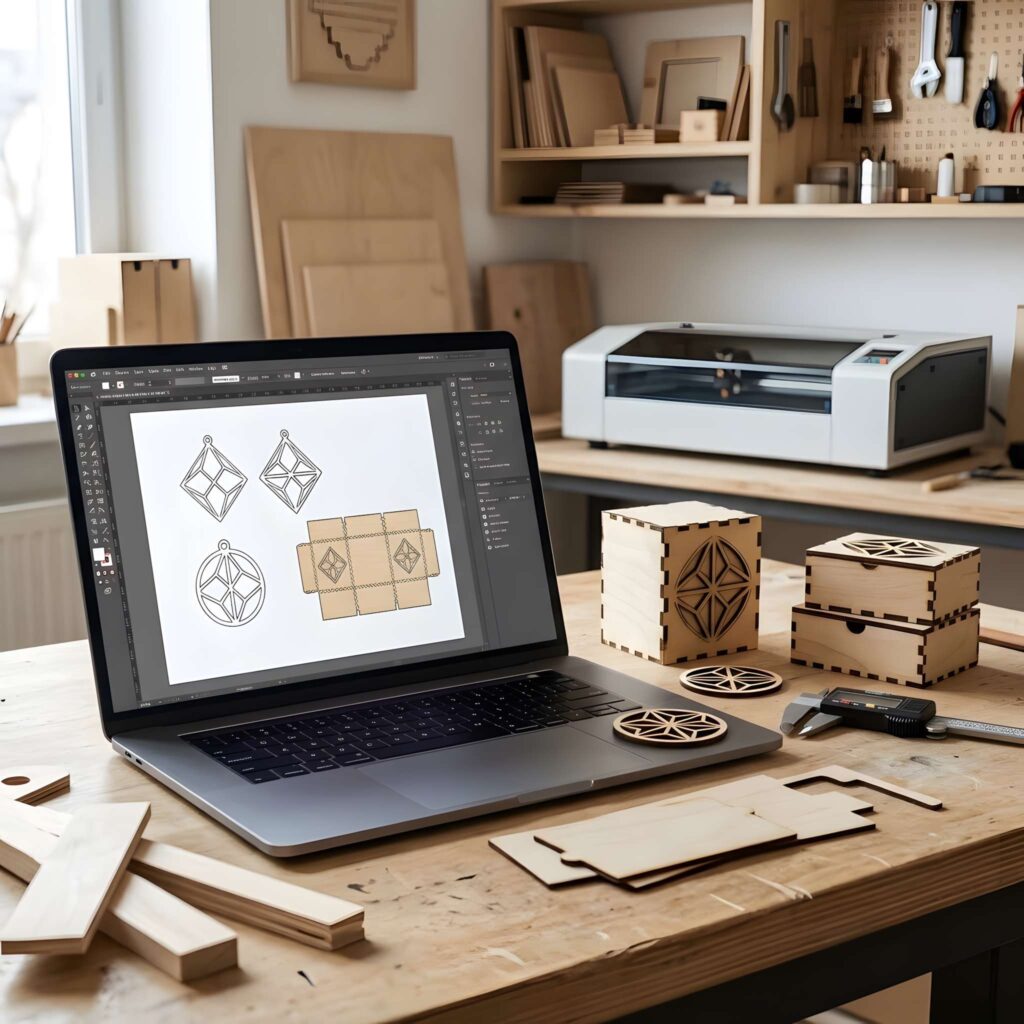
18. SVG File
SVG stands for Scalable Vector Graphics.
It is a widely used vector format for laser-cutting designs because it can preserve scalable paths, curves, and shapes.
SVG files are popular for:
- Wooden signs
- Layered wall art
- Holiday ornaments
- Jewelry
- Decorative boxes
However, not every SVG is ready for cutting. Files may contain embedded raster images, duplicate paths, or shapes that need additional preparation.
19. DXF File
DXF stands for Drawing Exchange Format.
It is a file format commonly used to exchange CAD geometry between design and manufacturing applications.
DXF is useful when accurate dimensions and technical drawings matter.
Example: Preparing a precisely dimensioned set of panels for a plywood storage organizer.
20. Raster Image
A raster image is made of pixels rather than editable vector paths.
Common raster formats include PNG and JPG.
These files are often suitable for image engraving but generally need tracing or other processing before they can be used as vector cutting paths.
21. CAD
CAD stands for Computer-Aided Design.
CAD software lets you create and modify technical drawings and models.
Laser cutting projects often use 2D CAD geometry to define where cuts should be made.
22. CAM
CAM means Computer-Aided Manufacturing.
CAM converts a design into manufacturing instructions, including toolpaths or machine operations.
In many desktop laser workflows, design preparation and machine-control functions are combined within the same software.
23. G-Code
G-code is a machine-control instruction format used by many CNC systems, including numerous desktop laser cutters.
It can describe movement, speed, and other supported actions.
However, not every laser machine uses ordinary G-code. Some systems use proprietary instructions or controller-specific protocols.
24. Layers
Layers help organize different operations within a design.
For example, one layer might contain cutting outlines, while another contains engraved text.
Software such as LightBurn allows many machines to use different settings for each layer.
This makes it easier to combine cutting and engraving in a single project.
25. Toolpath
A toolpath is the route the laser follows while working on the material.
Efficient toolpaths can reduce unnecessary travel movement and help produce predictable results.
For complicated designs, operation order matters too. Engraving details before cutting through the outer shape often helps keep the workpiece stationary.
26. Nesting
Nesting means arranging multiple shapes on a sheet to use the available material efficiently.
Good nesting can reduce scrap and make it easier to produce several parts in one job.
Example: Positioning twenty small plywood ornaments inside a single sheet rather than cutting them separately.
Materials and Cut Quality Terms
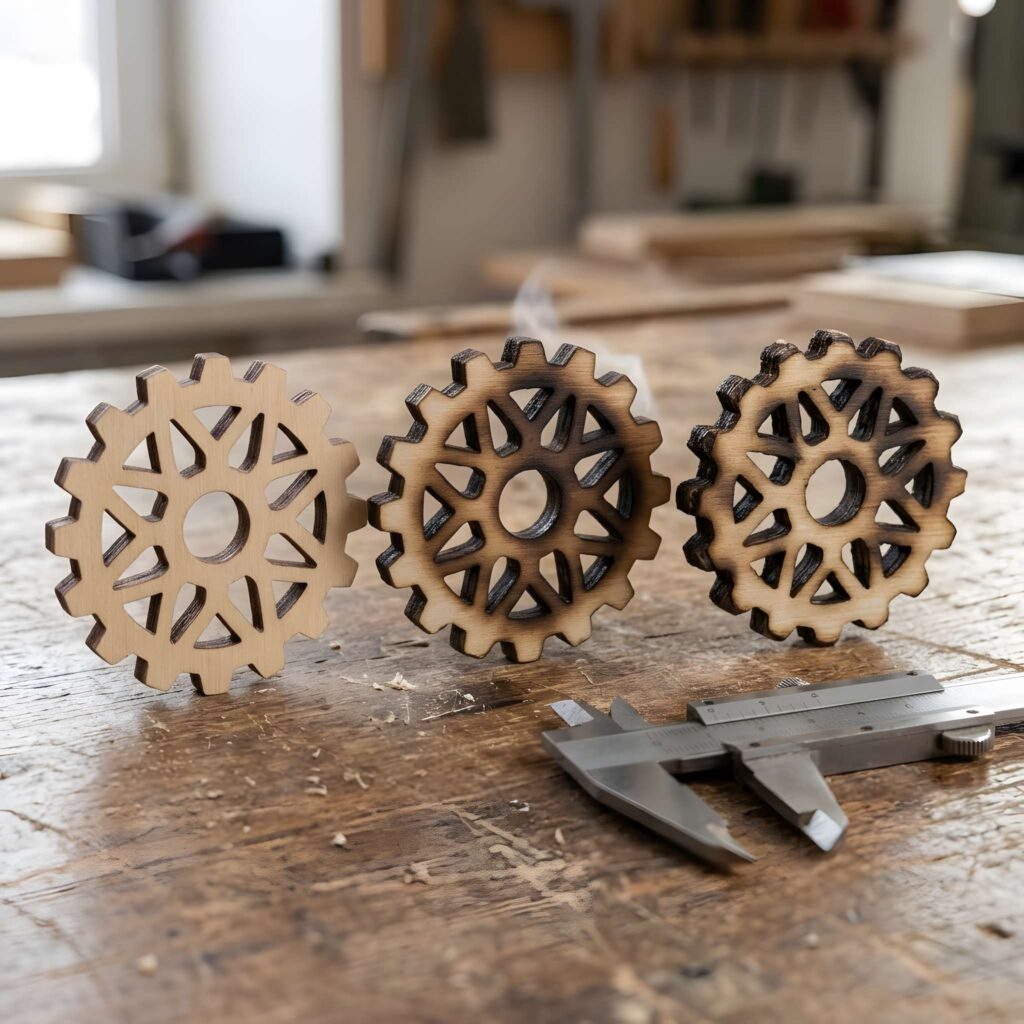
27. Heat-Affected Zone (HAZ)
The heat-affected zone is the area next to a cut where heat changes the properties of the material without fully removing it.
In metalworking, the HAZ may involve changes in hardness or microstructure. In woodworking, nearby thermal damage may be visible as discoloration or charring, although that isn’t the same technical measurement.
A smaller HAZ is often desirable when precision and clean edges matter.
28. Charring
Charring occurs when wood or another combustible material is darkened or damaged by heat.
You might notice dark edges around laser-cut plywood shapes.
Some darkening can be expected, but excessive charring may indicate unsuitable power, speed, focus, airflow, or material conditions.
29. Scorch Marks
Scorch marks are unwanted discoloration caused by heat, smoke, or combustion byproducts.
They commonly appear on the top or underside of wooden projects.
Depending on the material and finish requirements, masking, clean support surfaces, suitable air assist, and adjusted settings may help reduce them.
30. Dross
Dross is unwanted resolidified molten material that remains attached to a cut edge, particularly in metal cutting.
It can appear along the underside of a cut when molten material isn’t expelled cleanly.
Dross isn’t the same as the charred residue commonly seen on laser-cut plywood.
31. Taper
Taper describes a difference in the cut width between the top and bottom surfaces of a material.
When taper is noticeable, the sides of a cut may not be perfectly perpendicular.
It can affect the fit of precisely manufactured components, especially thicker pieces.
Kerf, taper, dross, and the heat-affected zone are common factors used to assess laser cut quality.
Laser Safety and Equipment Terms
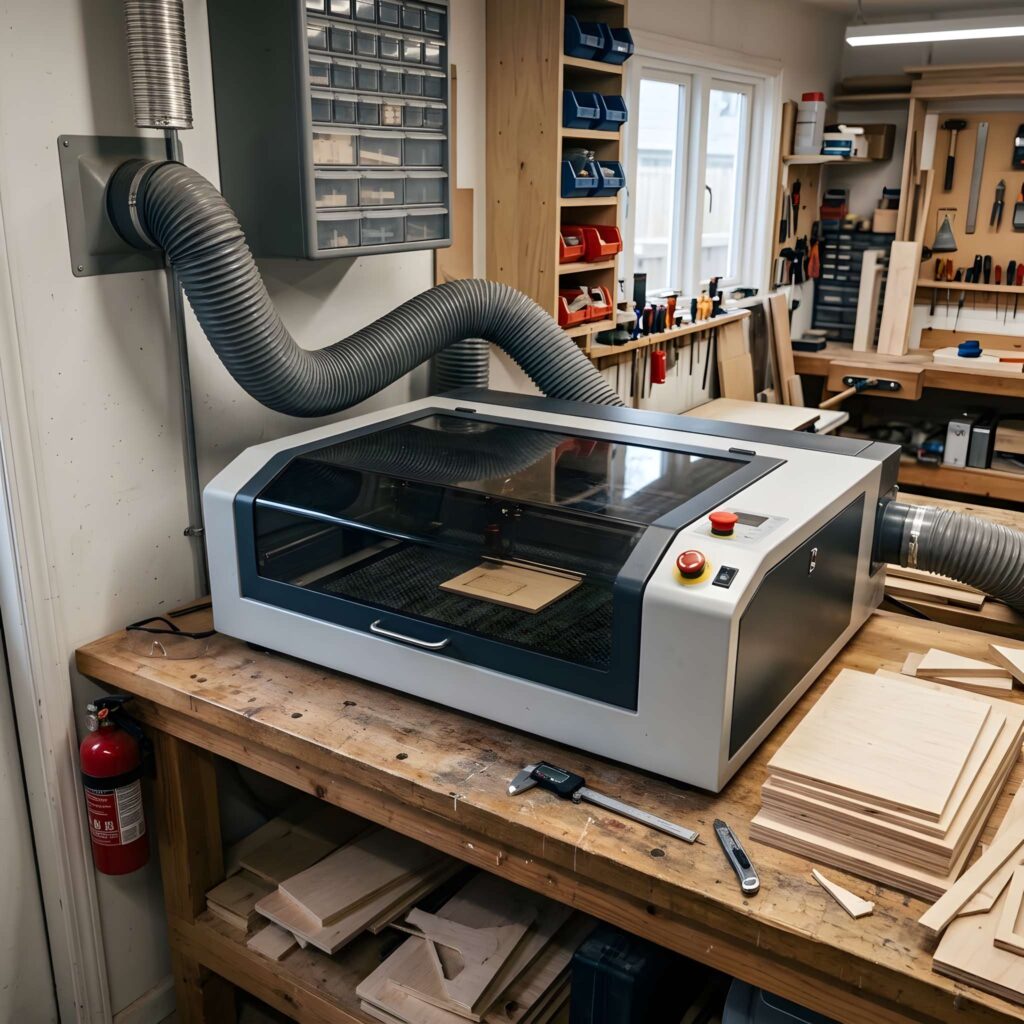
32. Exhaust Ventilation
Exhaust ventilation is a system that removes smoke, fumes, and airborne particles generated during laser cutting.
A typical setup may include an extraction fan, ducting, and an appropriate exhaust outlet or filtration system.
Effective extraction is important even when working with familiar materials like wood or acrylic.
Don’t assume that air assist alone provides adequate ventilation.
33. Laser Enclosure
A laser enclosure is a protective housing designed to help contain laser radiation, debris, and parts of the cutting process.
A properly designed enclosure may include protective viewing windows and safety interlocks.
An enclosure doesn’t automatically eliminate all hazards. Its suitability depends on the laser wavelength, optical safety rating, ventilation, and equipment design.
34. Laser Class
A laser class is a safety classification that describes potential exposure hazards under specified conditions.
A machine’s classification depends on the accessible laser radiation of the complete product, not simply the power rating of the laser source.
For example, some fully enclosed machines can be classified as Class 1 during normal operation even though they contain much more hazardous laser sources internally.
Always follow the manufacturer’s operating and protective equipment requirements.
35. Material Compatibility
Material compatibility describes whether a particular material is suitable for processing with a particular laser and machine setup.
Not every laser can cut every material.
For example, CO2 machines are commonly used for wood and certain acrylics, while fiber lasers are frequently used in metal processing. Diode lasers have different wavelength and material limitations.
Important safety note: Never laser-cut PVC, vinyl, or unidentified plastics. These materials can release hazardous or corrosive gases. Confirm the composition of the material before processing it, use appropriate extraction, and never leave an operating laser unattended.
Quick Reference: 35 Laser Cutting Terms
Keep this table handy when working with new software or project files.
| Term | Simple meaning |
|---|---|
| Laser cutting | Separating material with a laser |
| Laser engraving | Creating recessed surface designs |
| Laser etching | Producing relatively shallow surface marks |
| Laser marking | Changing a surface to create a mark |
| Kerf | Width of material removed by a cut |
| Kerf compensation | Adjusting paths for material loss |
| Vector cutting | Following lines and curves |
| Raster engraving | Scanning lines to create an image |
| Cutting bed | Surface supporting the material |
| Laser power | Laser output level |
| Cutting speed | Rate of movement along the cut |
| Passes | Number of repeated operations |
| Focal point | Location of concentrated laser energy |
| Focal distance | Working distance related to focusing |
| DPI / line interval | Engraving resolution and scan spacing |
| Air assist | Airflow directed at the processing area |
| Test grid | Sample pattern for comparing settings |
| SVG | Scalable vector graphics format |
| DXF | CAD drawing exchange format |
| Raster image | Pixel-based graphic |
| CAD | Computer-aided design |
| CAM | Computer-aided manufacturing |
| G-code | Machine-control instructions |
| Layers | Groups of separate design operations |
| Toolpath | Route followed by the laser |
| Nesting | Efficient arrangement of parts |
| HAZ | Heat-affected zone |
| Charring | Heat-related material carbonization |
| Scorch marks | Unwanted heat or smoke discoloration |
| Dross | Resolidified molten residue |
| Taper | Difference between top and bottom cut widths |
| Exhaust ventilation | System for removing fumes and particles |
| Laser enclosure | Protective machine housing |
| Laser class | Laser exposure-hazard classification |
| Material compatibility | Suitability of a material for a laser |
How to Apply These Terms to Your First Project
Knowing definitions is helpful, but actually using them makes the terminology stick.
Consider a simple project: cutting a personalized wooden name sign.
Step 1: Choose a vector design. Start with an SVG containing the letters, decorative shapes, and outer cutting outline. Check that the paths are suitable for your intended operations.
Step 2: Organize the layers. Set the text or decorative details to engrave, and assign the outer border to cut.
Step 3: Check the focal distance. Position the material according to your laser’s focusing procedure.
Step 4: Run a test grid. Use a small sample of the same material to select suitable power, speed, and passes.
Step 5: Check the kerf. If the design includes interlocking pieces, make a small test joint before cutting the complete project.
Step 6: Inspect the finished edges. Look for scorching, incomplete cuts, or other signs that the settings need adjustment.
This approach combines several laser cutting terms into one practical workflow.
Final Thoughts
Learning laser cutting terms doesn’t have to be complicated. Once you understand the essentials—especially kerf, power, speed, focus, vector files, and air assist—you’ll find it easier to prepare designs and troubleshoot problems.
Keep this glossary nearby while learning your machine, and refer back to it whenever you encounter unfamiliar terminology.
The best way to build confidence is to combine clear definitions with small, controlled projects, proper safety procedures, and careful material testing.
Every successful laser-cut project starts with understanding what your machine is doing.
Frequently Asked Questions
What are the most important laser cutting terms for beginners?
The most useful terms to learn first are kerf, laser power, cutting speed, passes, focal point, air assist, vector cutting, and laser engraving. Together, they describe many of the settings and processes involved in a basic desktop laser project.
What does kerf mean in laser cutting?
Kerf is the width of material removed by the laser during cutting. It affects the final dimensions of a piece and is particularly important when producing press-fit or interlocking components.
What’s the difference between laser cutting and engraving?
Laser cutting separates material along a path, while laser engraving creates a design or pattern on the material’s surface. Both use laser energy, but the objectives and operating settings differ.
What is the best file format for laser cutting?
SVG and DXF are commonly used for vector cutting. SVG is popular for decorative craft designs, while DXF is useful for technical CAD drawings. The best choice depends on the software and machine.
What do speed and power mean on a laser cutter?
Power controls the laser’s output level, while speed controls how quickly the beam moves over the material. The relationship between these settings influences how much energy is delivered during cutting or engraving.
Is a higher laser wattage always better?
No. Higher power can increase cutting capability for certain materials, but good results also depend on wavelength, beam quality, focusing, material properties, and settings. A more powerful machine isn’t necessarily the best option for every project.
Why is my laser cutter burning the edges of wood?
Excessive burning may result from too much energy reaching the material, improper focus, inadequate airflow, or the properties of the wood itself. Make controlled test cuts rather than changing several settings at once.
Do I need to understand G-code to use a laser cutter?
Not necessarily. Many desktop laser programs generate the required machine instructions automatically. Understanding basic operations and machine settings is generally more important for beginners than writing G-code manually.